
Scale-Label Barcodes: How a Supermarket POS Reads Weight and Price
What a scale label holds, how a POS reads weight and price with one scan, and what to check before going live, from my work building the Sepehr supermarket POS.
 Habib S. · Ldora
Every supermarket that sells fruit, cheese, meat or nuts by weight knows this moment: a customer puts a bag on the counter, and the cashier has to read the price off a sticker and type it in by hand. When the queue is long, digits get swapped, and at closing time the till does not match real sales.
I saw this first-hand while building Sepehr, a point-of-sale system that replaced a supermarket's old POS software. One of the first things that had to work properly was reading scale labels: the small stickers the scale prints and sticks on each bag. Here is how those labels work, how a POS reads them, and what to check before you go live.
What is inside a scale label?
A normal barcode only says which product this is; the POS takes the price from its own list. Loose goods weigh something different every time, so a fixed barcode is not enough.
That is why shop scales print a fresh label after weighing. Its barcode packs several pieces of information together:
- The product code set up in the scale, such as "white cheese" or "red apples".
- The weight of what was on the scale.
- On many scales, the final price of that bag.
Where each piece sits inside the barcode, and how long the barcode is, depends on the scale model and its settings. In the shop I worked with, the labels were 20 digits long, and the POS had to understand exactly that format.
How the POS reads it
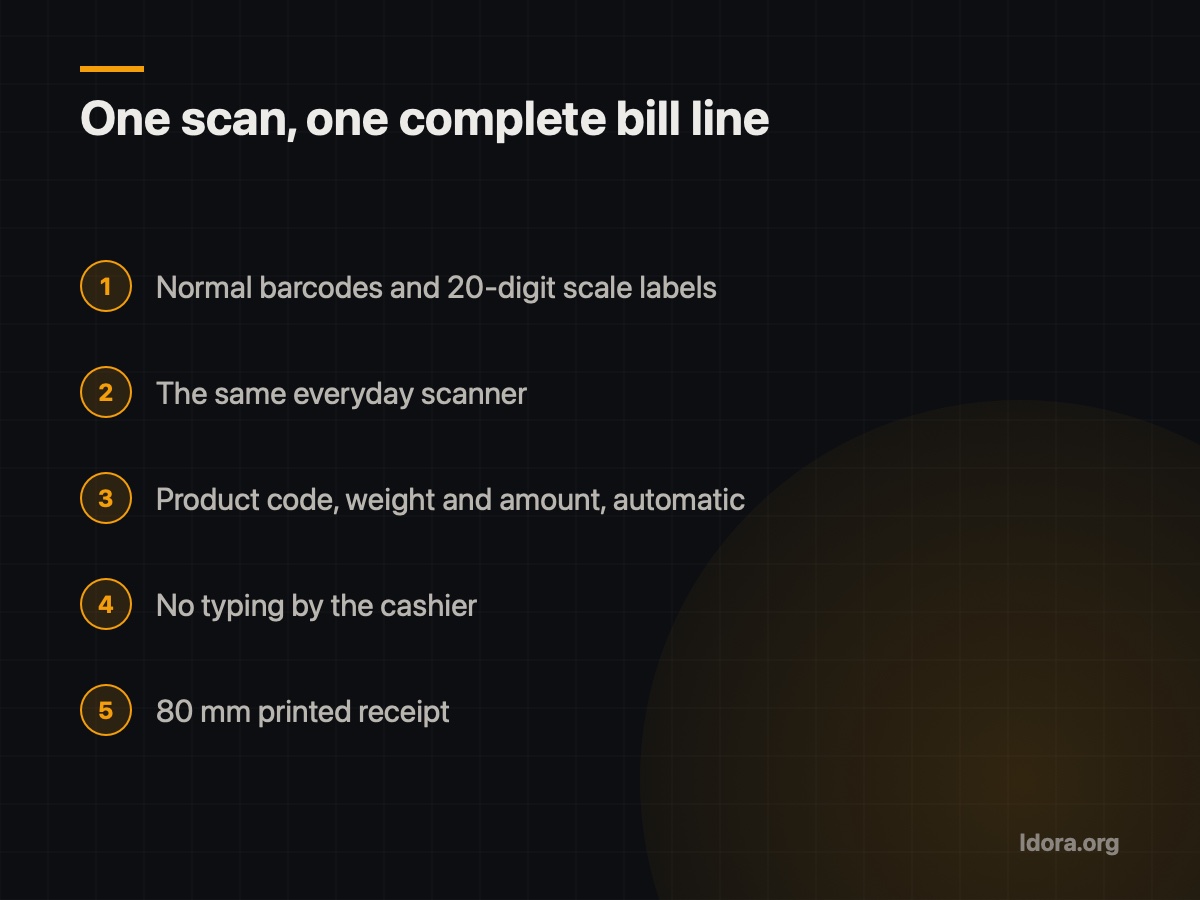
For the cashier, nothing changes. The same scanner used for packaged goods also reads scale labels. The real work happens behind the scenes:
- The scanner sends the string of digits to the POS.
- The POS recognises from its shape and length that this is a scale label, not a normal barcode.
- It extracts the product code and finds it in the shop's product list.
- It reads the weight or price from its own part of the code.
- A complete line with product name, weight and amount is added to the bill.
In Sepehr, both normal barcodes and 20-digit scale labels are read with one scan, and the sale ends with an 80 mm printed receipt. The cashier never types anything or switches modes.
Why typing weights and prices by hand hurts
It is not only about typos:
- Queue speed. Every bag entered by hand takes extra seconds, and at busy hours those seconds add up.
- Sales reports. If the cashier types a lump sum, the system does not know what was sold, so per-product sales reports are incomplete.
- Stock levels. If the product is not recorded, stock is not reduced, and stock counts stop matching the system.
- Customer trust. A receipt that names each item lets customers check their own shopping.
Reading the label automatically fixes all four.
Keep the scale and the product list in sync
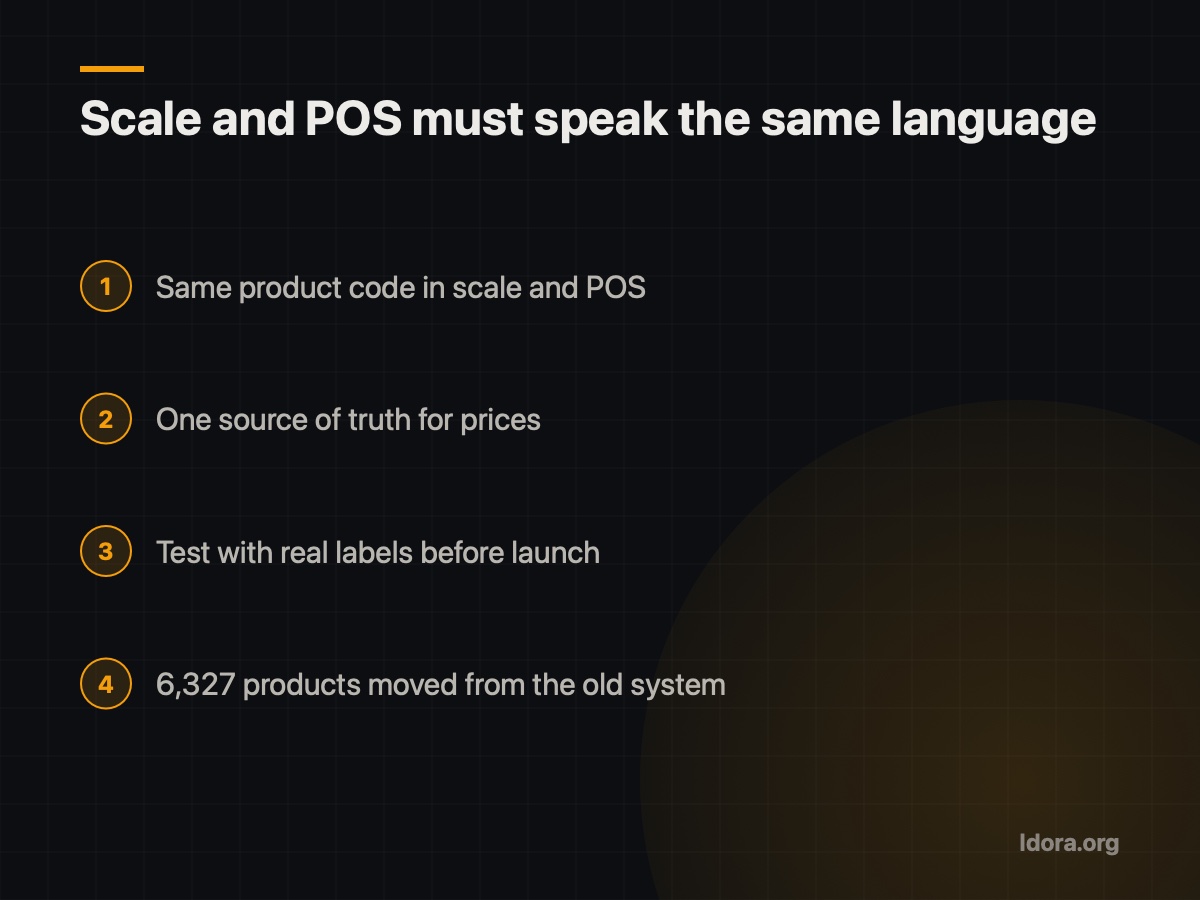
A scale label is only useful if the product code in the scale matches the code for the same product in the POS. If cheese has one code in the scale and another in the POS, the till either cannot find it or, worse, charges for the wrong item.
This matters most when you switch POS software. When Sepehr replaced the old system, 6,327 products were moved across. One thing that needed care was keeping the codes of loose goods unchanged, so the scales kept working with the new POS without being reconfigured.
Also decide where the price lives. If the scale puts the price in the label, the scale's prices must be up to date. If the POS takes the price from its own list, update it there. What matters is that there is one source of truth for prices, so you never have two different prices in the same shop.
Checklist for scale labels at your till
- Find out your scale model and its label format (length, and where code, weight and price sit).
- Make sure your POS understands that format with your normal scanner.
- Match the codes of loose goods in the scale and the POS one by one.
- Decide whether the scale or the POS is the source of prices, and update only that one.
- Test with real labels for several products and check the printed receipt.
- If you are switching POS software, keep the codes of loose goods during the move.
Wrapping up
If you run a shop and want a till that reads both normal barcodes and scale labels, take a look at my work at Ldora and request a free demo so you can try it on your own shop before deciding anything.
Want something like this?
Tell me about your business
More guides

Running a Building Without a Manager: Rota, Votes, Accountant
What I learned building an app for a 9-unit building with no manager: a weekly duty rota, votes on big costs, and an accountant who only pays bills.
Read
Café Staff Attendance and Payroll: What to Track
What a small café should record every day so month-end staff payroll closes without mistakes or arguments, based on my work for Cafe Barama in Shiraz.
Read
Android App Without Google Play: Ship an APK From Your Site
How to deliver a signed Android app (APK) to your customers straight from your own website, without Google Play, based on real experience with Cafe Barama.
Read